
Making all your devices sync can be a crazy task. As someone who uses a ton of Apple tech with 5 separate Google email addresses to maintain and check, I’m well aware of how hard it can be to juggle these devices and accounts to use them in a way that doesn’t interrupt my workflow. I’ve also been using Apple Products for almost 10 years now and have learned a thing or two to help me not lose my sanity. Allow me to share my learnings with you!
Some background on my tech:
- 2 iPhones: I have a work iPhone (iPhone 8) and personal iPhone.
- 2 Apple IDs: I have a Work Apple ID and Personal Apple ID. It would be a dream to only have to use one Apple ID but I prefer to keep work and personal accounts separate.
- 2 Macbook Pros: I have a Work MacBook Pro (late 2018) and a personal Macbook Pro (Early 2017).
- My personal ipad is (Late 2019).
- At least 5 Google email addresses I check daily.
It’s worth noting that because I’m using two separate Apple IDs, I can’t blend work and personal when it comes to Apple Apps such as Reminders, Notes, Pages, Messages, etc. Apple Apps do not currently support multiple account access. In other words, for example, all messages, emails, notes, and reminders I make for my personal phone cannot be synced with my work phone. They remain separate (unless you manually share individual items like lists, notes, and pages back and forth between phones as needed but who wants to do that?).
Furthermore, each time that I’ve tried to access my Google email addresses using the Apple Mail app, the results have been laggy and delayed. I wouldn’t receive emails in a timely manner and the inboxes wouldn’t sync for me. That may not be the case for others but its been the case for me each time I’ve attempted to try it within the last 10 years. This has caused me to continue relying on Gmail for both an email, access, and app availability.
However, this was still a lot of work.
Beyond emails, I was spending a lot of time digging through bookmarks and losing the tab I was working on (granted I would have 47 open). Everything (work, personal, side hustle, hobby) blended together on one Chrome internet window and needless to say, it was overwhelming. With Chrome’s latest update and the introduction of profiles, the game has changed and my workflow is now uninterrupted.
Also, I’m aware that this situation may not apply to most people. You will probably have one iPhone, one laptop, and maybe an iPad. Not many people have multiple devices of each or multiple email accounts on Google.
In a dream world, I suppose, everything would be on Safari and I would only have Apple Email addresses. As someone who started on Windows and migrated to Google and then Mac, I can say that it’s a tougher transition than you might think and to be honest, I’m kind of set in my ways. One day, I might. But probably not tomorrow… or the next day.
For now though, if you are someone who has multiple email addresses, namely Gmail email addresses, or multiple devices that you can’t sync for whatever reason, this blog post will still help you greatly! Let’s dive in!
Google Chrome Profiles. So if you’re like me, you have like half a dozen email addresses because you are a boss-babe, like to be stressed, and can’t stop being creative and coming up with new business ventures. Just kidding! But seriously. You probably have like 4 different email addresses with Google and it can get cray. Here’s how to set up multiple Google Chrome Profiles so you don’t go insane with managing them all:
Here’s how to set up multiple Google Chrome Profiles
- Open Google Chrome and Log in to your first Google Chrome Profile account. If you aren’t sure where this is, click the person icon on the top right corner of your Chrome window. If you use Chrome regularly, you might already be logged in. In that case, you might see a profile picture instead. Just make sure you are logged in.
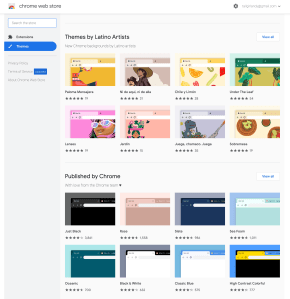
- Next, go to Google Themes or Google Web Store and select a theme for this Google Chrome Profile account. Think of personal preferences vs. branding colors. Select an appropriate color for this account. You can always change this in the future!
- Repeat Steps 1-2 as needed until you’ve added all your Google Accounts.
Additional tips
- Open multiple profiles at once. You’ll notice that once you login to each profile, you’ll be able to quickly access them from clicking on your profile image like in step 1. You won’t need to log in to them anymore (unless you change your password or Google wants to be annoying).
- Customize Bookmarks. Also, you can set up each profile’s bookmarks and shortcuts specifically for that profile’s purpose. For example, if you consider your Amazon shopping account a personal bookmark, you don’t necessarily need to have it as a bookmark for your Etsy profile/side hustle profile. Because you probably want to focus on makin’ money, not spendin’ it, amirite?!
- Select color themes wisely. The color coordination available when you select a custom Google Theme also helps greatly to visually see which profile you are working in. For example:
- My personal theme is a Rose Gold.
- My Tall Girl Andy is a Hot Pink.
- The Vary Creatives is a Dark Red.
- The Vary Creatives Designs is a Black.
- Work is a Teal.
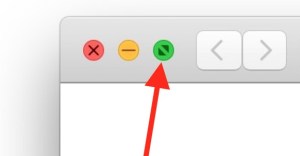
- Make your Chrome window full screen for maximum potential. Lastly, if you are working on a MacBook and have multiple Google Chrome Profiles open at once, click the green plus mark on the top left of the window to enable full desktop view of the internet browser window. If you are using a Trackpad of Apple Mouse, you can easily swipe between your Google Chrome Profiles aka jump back and forth to each account quickly.
- Forwarding emails. Conversely, if you’re not wanting to do any of this, you could also forward all the emails you receive from other accounts to one, single account. Here’s how to do that. For me, I like to keep email accounts separate whenever possible. This hack of using Google Chrome Profiles has helped me stay focused on the realm at hand so I decided NOT to forward emails.
- BONUS TIP: And you probably already know this, but you can log in and access multiple Google Email Accounts on your iPhone as well. Here’s how. Once you’re logged in, there is also an option to view emails coming in from all accounts at the same time instead of having to open each separate account individually.

I hope this blog post helps you as a Mac User take advantage of multiple Chrome Profiles on your devices (multi-apple ID or not).
If you liked this post and thought it was helpful, please hit the like button and be sure to follow me on Instagram @tallgirlandy.
 Tall Girl Andy